Input Nodes
Use a live camera feed or video file from your Photos library, with flip, brightness, and contrast controls.
Node-Based Video Filters
Create custom video effects, live camera filters, and layered visual experiments with Filter Flow. Chain filters, blend multiple video sources, and build real-time effects from a visual node editor on your iPhone or iPad.
Filter Flow lets you combine videos from your Photos library with your live camera feed. Blend them using Overlay, Multiply, Screen, Addition, Difference, and more. Add filters anywhere in the chain, adjust each parameter, and build layered effects that go far beyond a one-tap filter app.
Start fast with artistically crafted presets. One tap builds a complete node graph automatically — instant inspiration for social media edits, experimental visuals, and stylized video.
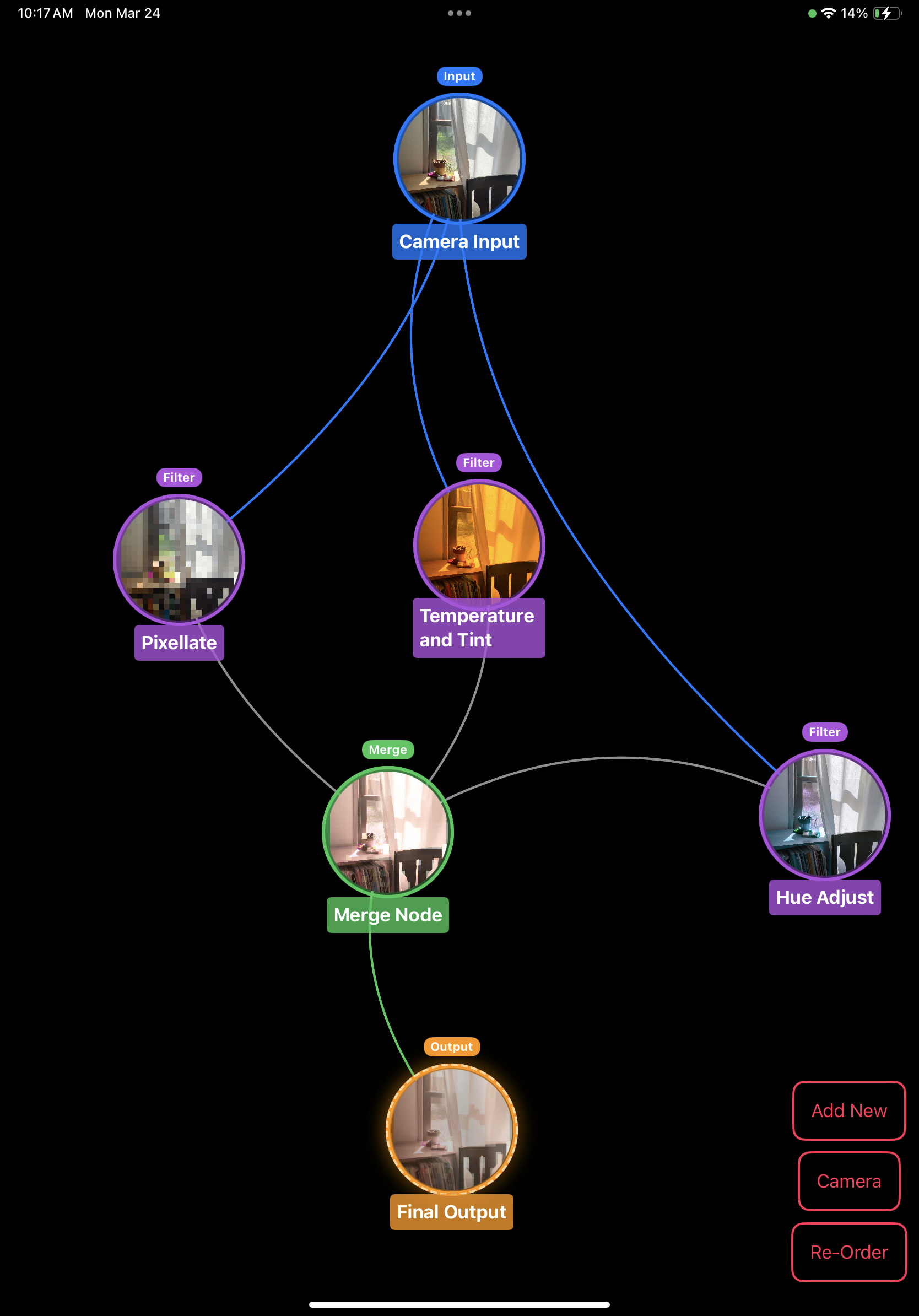
Use a drag-and-drop editor inspired by node-based creative tools. Connect filter nodes, merge sources, and see your full creative pipeline as you build. Multi-layer compositing is simple, visual, and immediate.
Use a live camera feed or video file from your Photos library, with flip, brightness, and contrast controls.
Apply 40+ visual effects with adjustable parameters anywhere in the chain.
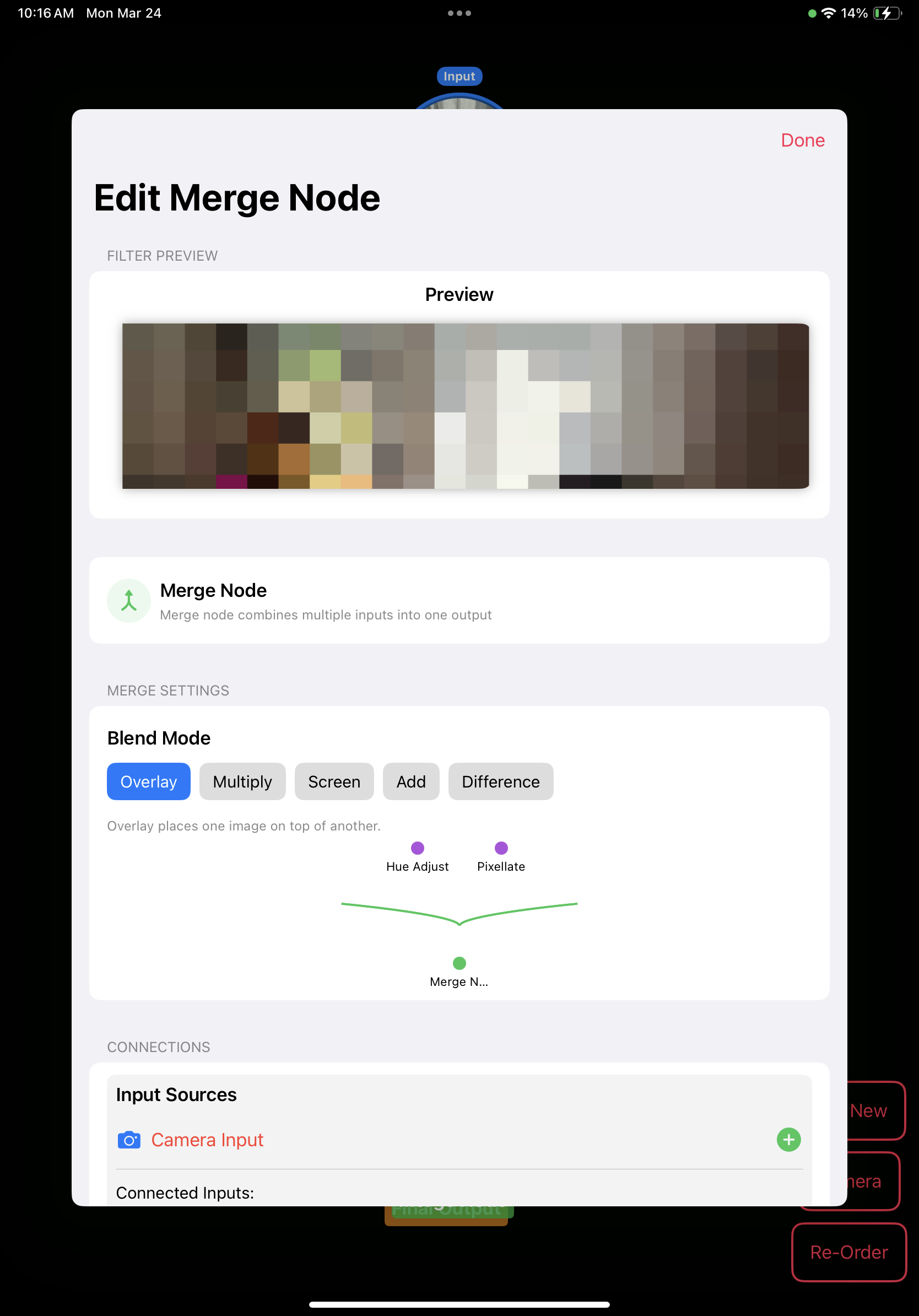
Combine multiple sources with 16 blend modes including Overlay, Screen, Multiply, and Difference.
Preview your final composition in real time, ready to record and share.
Use Core Image filters across color, distortion, stylize, and generator categories.
Record your filtered video and save it directly to your camera roll. Share your creations to social media, messages, or anywhere you post video.
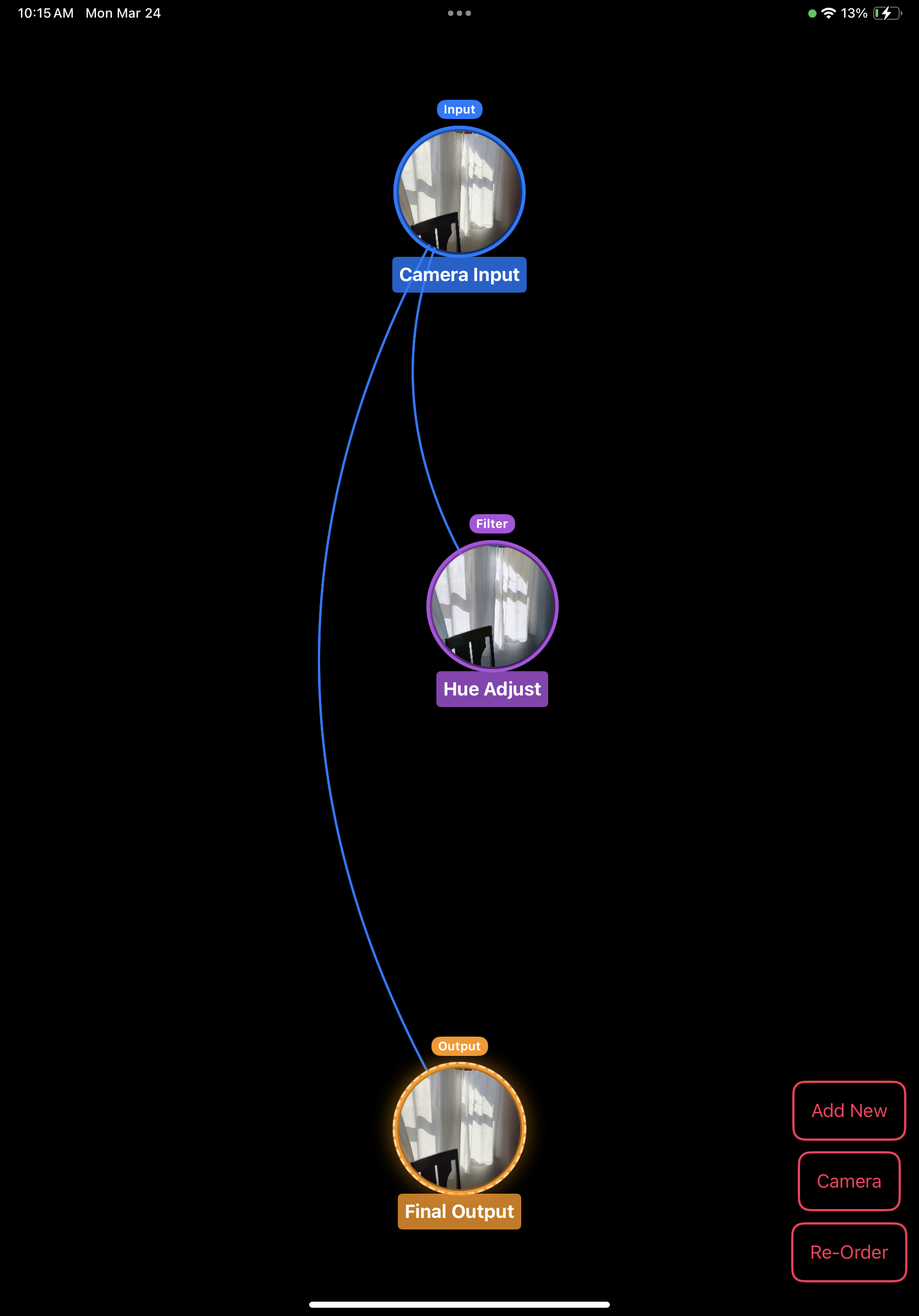
When you first open Filter Flow, you'll see the default setup with three basic nodes:
Connections show how video data flows from input through filters to output.
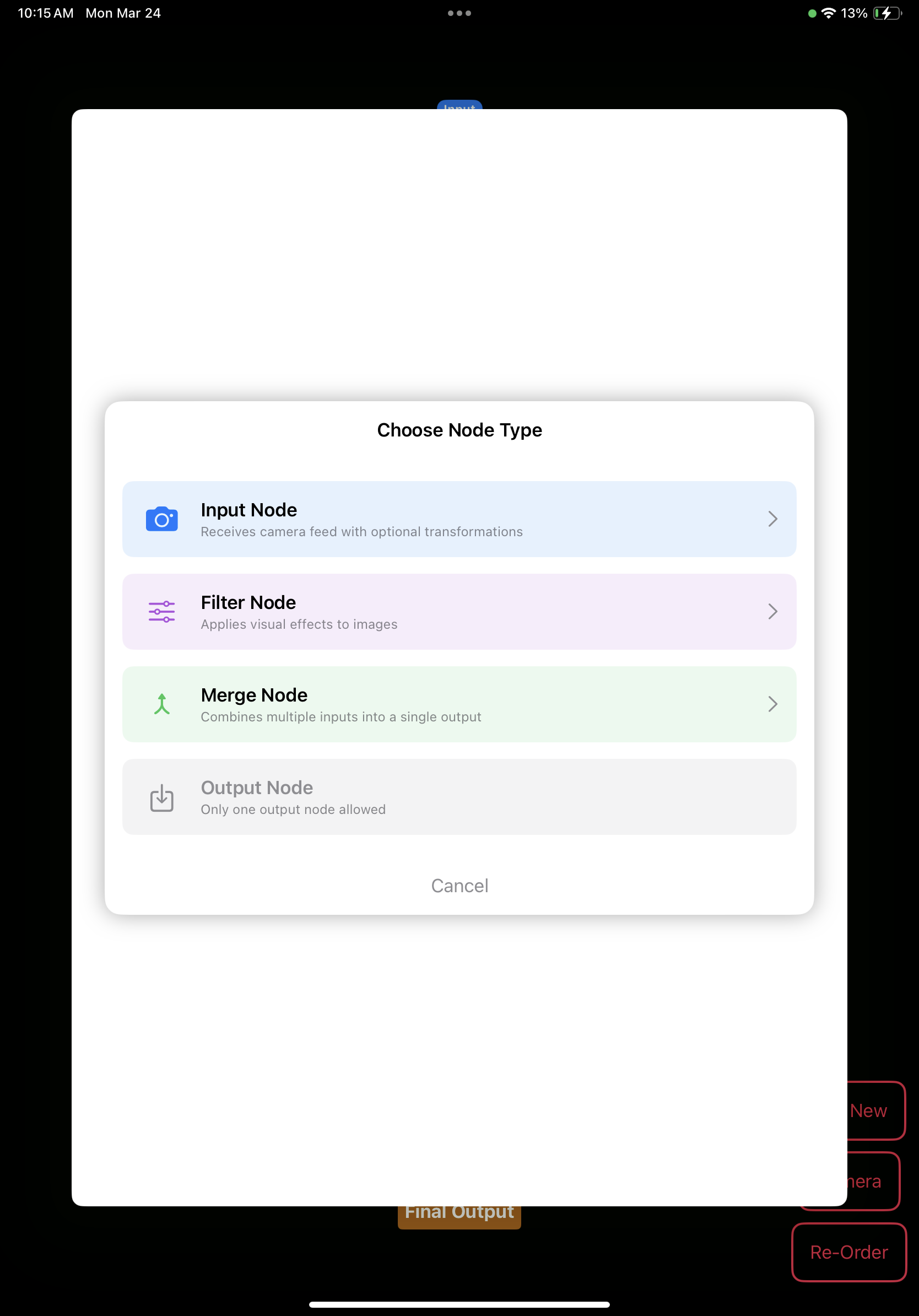
To add a new filter or effect:
Each node type plays a different role in the pipeline:
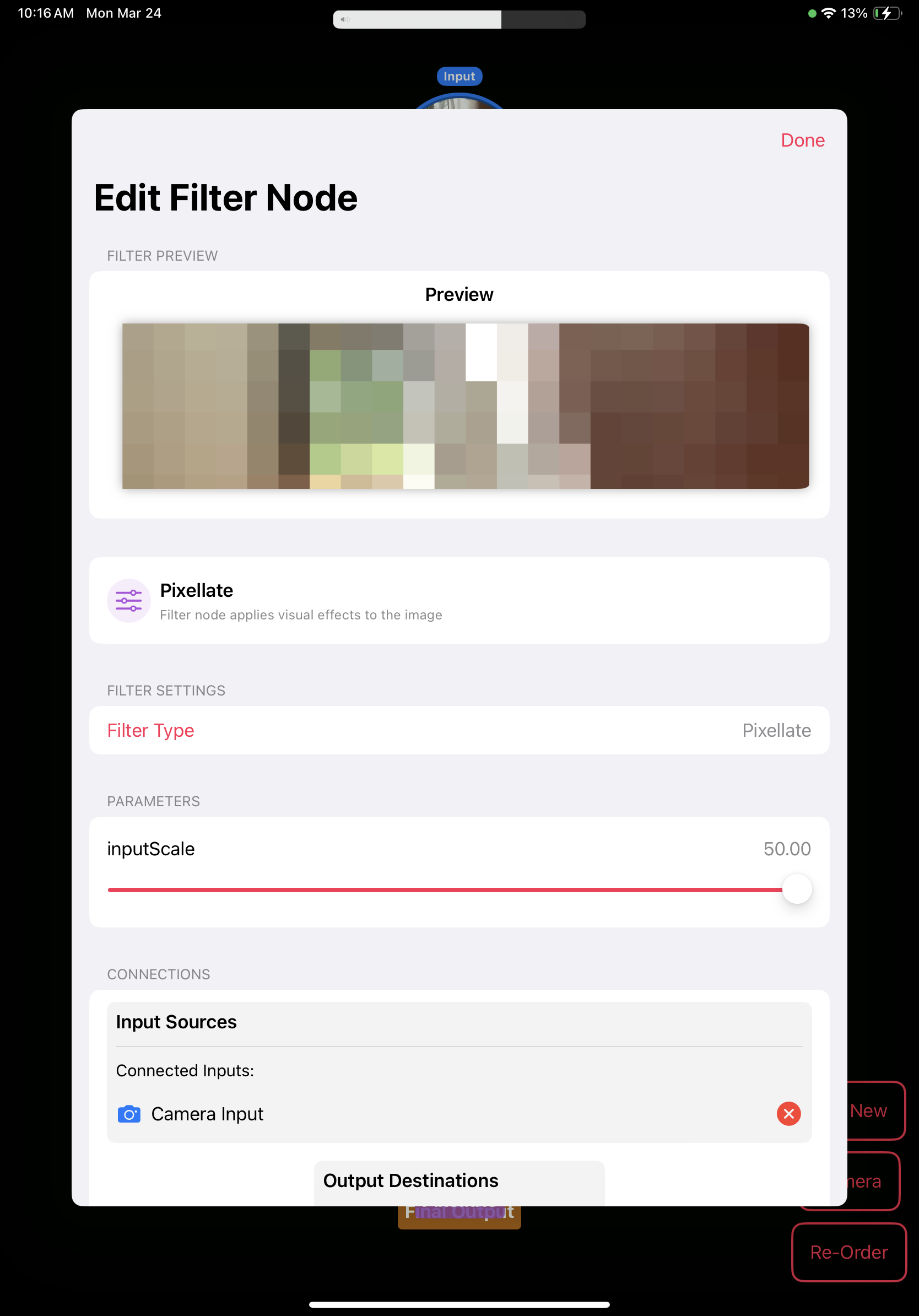
Customize how your filters work by adjusting their parameters:
Build sophisticated effects by connecting multiple nodes:
Merge nodes combine multiple filter chains into one:
When you're ready to see your creation in action:
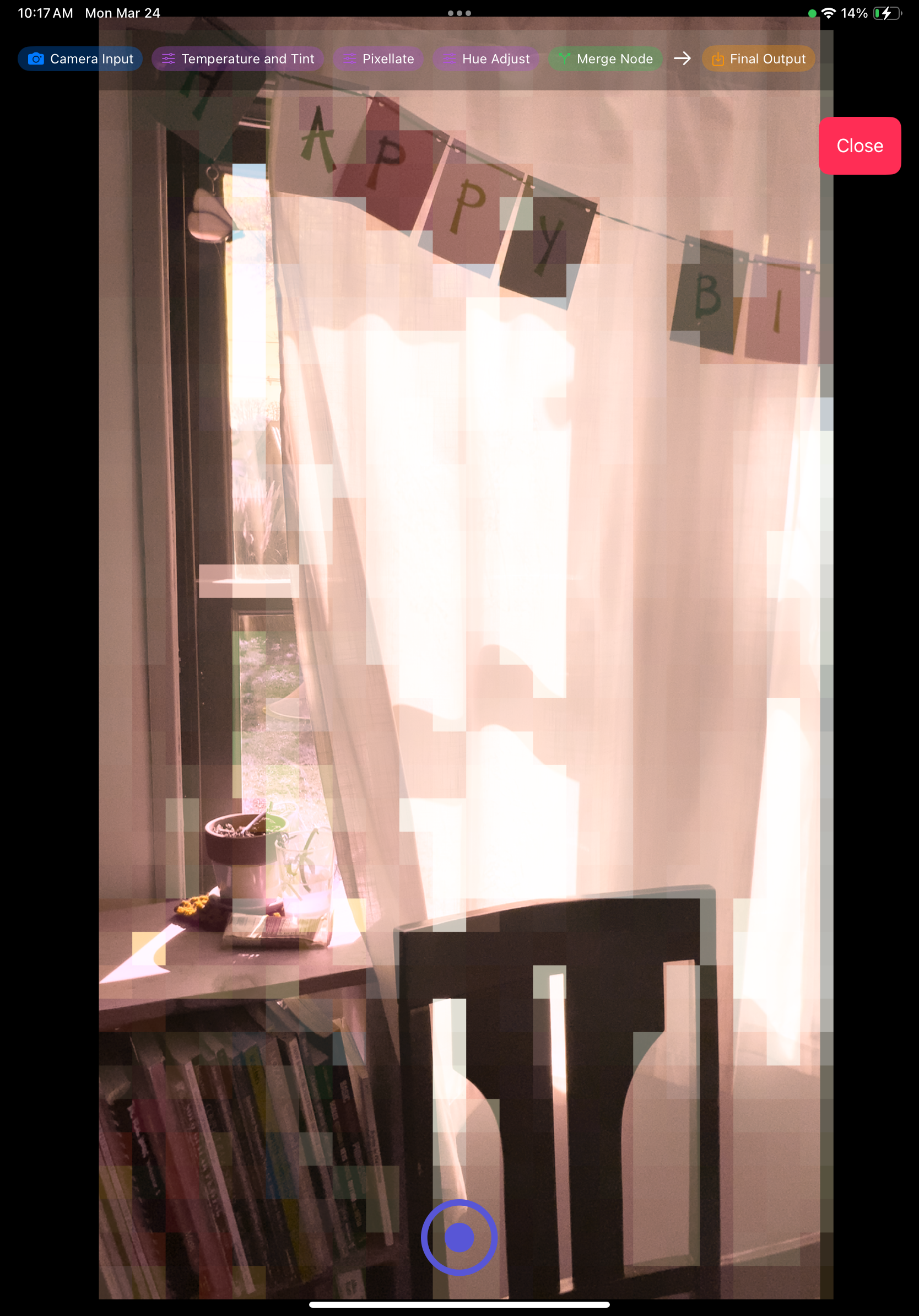
An example of what you can build with Filter Flow:
This example chains a Temperature and Tint filter with Pixelate, merged through an Overlay blend mode.
Unlike simple one-tap video filter apps, Filter Flow gives you a playful, node-based way to build your own effects. Connect filters, camera feeds, videos, and blend modes like building blocks. Make glitch visuals, VHS-style edits, layered camera effects, abstract compositions, and strange little video experiments you will not get from a normal editor.
Start creating today with Filter Flow. Make aesthetic video effects, explore weird combinations, and turn your ideas into motion.
Filter Flow: Experimental FX is a node-based video filter app for iPhone and iPad. You build real-time effects by connecting input, filter, merge, and output nodes — chaining 40+ Core Image filters and blending live camera with video files using 16 blend modes.
iPhone and iPad running iOS 18.2 or later. A physical device is recommended so you can use the live camera input.
40+ Core Image filters and 16 blend modes including Overlay, Screen, Multiply, Soft Light, Color Dodge, Color Burn, and Difference.
Yes. Add a camera input and a video input, route both into a merge node, and pick a blend mode. Add filters anywhere in the chain.
Yes — 15+ presets like Cyberpunk, Liminal Space, Vaporwave, Retro CRT, Summer Heat, Sepia Tone, and Dramatic Vignette. One tap builds the full graph.
Yes. Record your filtered video and save it to your camera roll, ready to share anywhere.
Filter Flow is made by Principal LA LLC. Contact: hello@principal.la.
Questions or feedback? Email hello@principal.la.
Ready to build your own video effects? Download Filter Flow and start creating.